
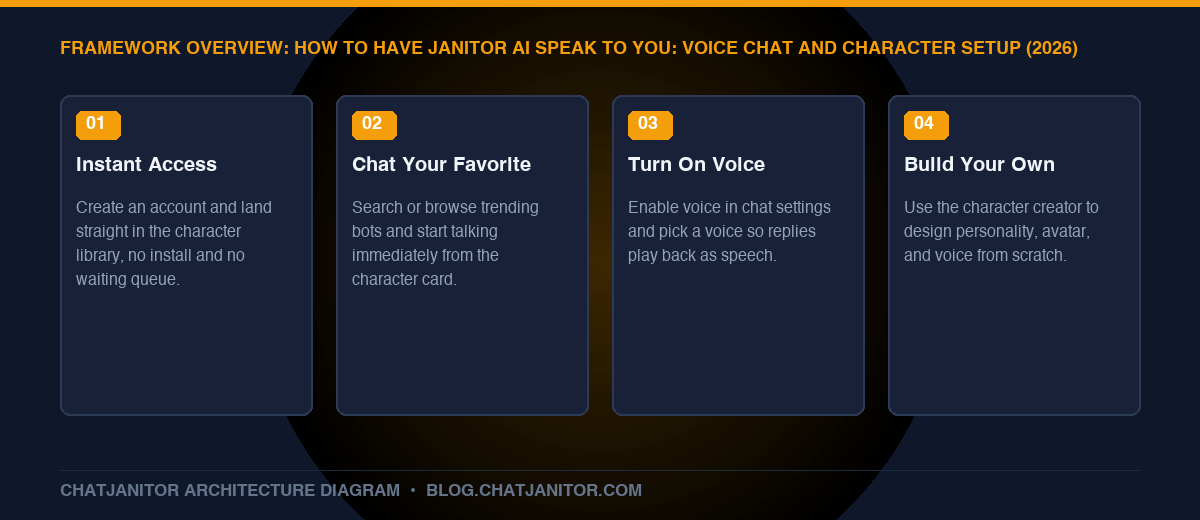
Getting a character to actually speak to you on ChatJanitor takes three steps: pick a character from the library (or build your own in a couple of minutes), open its chat, and turn on voice from the chat settings. No downloads, no complicated setup — just an account and a character you want to talk to.
Key Takeaways
- Zero-friction start: Create an account and you’re chatting within seconds — no app install, no waiting list.
- Instant access to favorites: Browse the community library and start talking to a character you already love immediately.
- Voice makes it feel real: Turning on voice chat gives your favorite characters an actual spoken voice, not just text replies.
- Build your own if none quite fit: The character creator lets you design a bot’s look, personality, and voice from scratch in minutes.
- Personalize everything: Your own persona, the bot’s voice, and its personality can all be tuned to exactly how you want to experience the chat.
1. Getting Started on ChatJanitor Takes Seconds
There’s no lengthy setup between you and your first conversation:
- Create an account with email or Discord — no waiting period, no approval queue.
- Set up your persona once (a name and a short description of who you are in the chat) so every character you talk to recognizes you consistently.
- Land straight on the character library, already sorted by trending, new, and top-rated bots.
That’s the whole barrier to entry. From here, everything is about choosing who you want to talk to and how you want to hear from them.
2. Chat Instantly With Your Favorite Character
If you already have a character in mind — a personality you’ve seen recommended, a franchise favorite, or a companion type you enjoy — finding and starting that conversation is immediate:
- Search by name or tag in the library to jump straight to a specific character.
- Browse trending and featured bots if you’re not sure yet and want inspiration.
- Tap the character card and start typing — there’s no separate “setup mode” before the conversation begins.
The chat opens with the character’s own greeting message already in character, so the conversation feels alive from your very first message rather than starting from a blank screen.
3. Give Your Bot a Voice
This is what turns a character from “text on a screen” into something that actually feels like it’s speaking to you:
- Open the chat settings for the character you’re talking to.
- Turn on voice for that conversation.
- Choose a voice that fits the character, if more than one option is available for that bot.
- Send a message as usual — the reply now plays back as speech in addition to appearing as text.
🔊 Why Voice Changes the Experience
Reading a reply and hearing it are genuinely different experiences — tone, pacing, and personality come through in a way plain text can’t fully capture. Voice is especially popular for companion-style characters and long-running story arcs, where hearing the same “voice” consistently makes the relationship feel continuous across sessions.
4. Build a Character That Truly Feels Like Your Own
If no existing character quite matches what you’re looking for, creating one takes only a few minutes:
- Give it an identity — a name, a short one-line premise, and an avatar.
- Define the personality — traits, speech style, and background, using our character card templates if you want a proven starting structure.
- Write an opening message that sets the tone immediately, so the very first thing your character does is stay in character.
- Assign a voice during setup so the character speaks the way you imagined it from the very first conversation, not as an afterthought.
For the full step-by-step creator walkthrough — including sample dialogue and avatar tips — see our complete bot creation guide.
5. Personalize Everything About the Experience
Voice and character choice are just the start. A few more settings make the experience feel tailored specifically to you:
| What You Can Personalize | Where It Lives |
|---|---|
| Your own persona (name, description) | Account/profile settings |
| Character personality and backstory | Character creator |
| Character’s voice | Chat settings, per character |
| Response length and creativity | Generation settings |
| Formatting style (action beats, dialogue) | Commands and formatting guide |
Combining these means two people can talk to the exact same character and have noticeably different experiences — which is the point. The platform is built around making the character feel like yours, not a fixed, one-size-fits-all script.
FAQ
Do I need to set anything up before a character can speak to me?
Just turn on voice in that chat’s settings and pick a voice if more than one is offered — there’s no separate account-level setup required.
Can every character use voice?
Voice availability can depend on the specific character and current platform settings — check the chat settings panel for that character to see what’s offered.
Can I change a character’s voice after I’ve already started chatting with it?
Yes — voice selection lives in the chat settings for that character, so you can switch it at any time without losing your conversation history.
What if I want a completely custom character instead of one from the library?
Use the character creator to build one from scratch — see our step-by-step guide for personality, avatar, and opening message tips.
Conclusion
Getting Janitor AI to speak to you isn’t a technical project — it’s picking a character, flipping on voice, and optionally building your own if nothing in the library feels quite right. Between instant access to favorites, voice chat, and full character customization, the experience is built to feel personal from the very first message.
- Start chatting today: how to use Janitor AI
- Build your own character: how to make a Janitor AI bot
- Fine-tune how your bot responds: Janitor AI settings guide


